








What Does Collate Mean When Printing? The Definitive Sorting And Layout Guide
08 August 2026
5 Mins Read
- What Are Some Common Hardware Considerations Of Collate Printing?
- · RAM-Dependent Rendering
- · The Slower Processing Tradeoff
- · Finisher Options
- What Does Collate Mean When Printing, And When Should You Do It?
- What Are The Advantages Of Collate Printing?
- 1. Efficiency
- 2. Accuracy
- 3. Convenience
- How To Enable Collation Across Major Software Suites?
- 1. Microsoft Word And Excel
- 2. Adobe Acrobat Reader (PDFs)
- 3. Google Docs And Chrome Browser
- Troubleshooting Common Collation Errors
- What Does Collate Mean When Printing Explained
Managing office document production or setting up a high-volume print run requires a clear understanding of your printer software configuration options.
If you have ever opened a print menu, you have likely noticed a small checkbox labeled Collate.
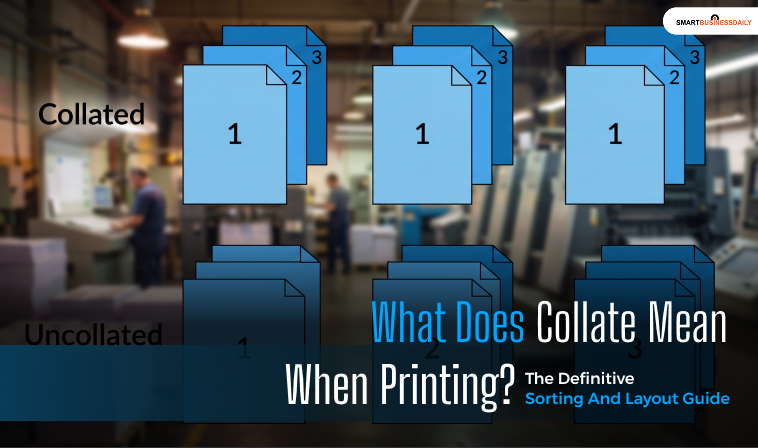
If you are trying to understand what does collate means when printing, the answer is straightforward.
It means organizing a multi-page document into its proper, sequential numerical order rather than grouping identical pages together.
The setting you select before hitting the print command determines the exact physical sorting order of the paper sheets exiting the collection tray.
What Are Some Common Hardware Considerations Of Collate Printing?
While modern consumer and enterprise printers handle collation effortlessly, the backend execution process depends heavily on your printer’s built-in memory capabilities:
· RAM-Dependent Rendering
To execute a collated print job, the printer’s onboard Random Access Memory (RAM) or hard drive storage must hold the entire multi-page document file simultaneously.
· The Slower Processing Tradeoff
Uncollated printing is technically faster for legacy or low-end printer hardware.
The machine only needs to process a single page’s image data once and then repeat the mechanical printing cycle.
Collated printing requires the internal processor to constantly cycle through different page files.
So, this can slightly reduce overall printing speeds on older machines.
· Finisher Options
High-volume corporate copiers often feature specialized mechanical attachment modules called finishers.
These units can take a collated document stream. Also, they can shift each completed set slightly to the side to create clear visual separation.
Moreover, they will automatically staple the upper-left corner without any human interaction.
What Does Collate Mean When Printing, And When Should You Do It?
Collated printing is a valuable technique for producing various collateral materials, including booklets, reports, manuals, and other multi-page documents that must be organized in a specific sequence.
This method streamlines the printing process by eliminating the need for manual sorting, as the printing equipment automatically arranges the pages in the correct order.
Due to its efficiency, collated printing is utilized across numerous industries.
For instance, educators and administrators often require printed handouts, tests, or reports, while offices depend on collated documents for meetings, presentations, and client information packs.
Collated printing is particularly beneficial when multiple copies of a document need to be printed and distributed in a specific order, offering time savings and improved organization.
What Are The Advantages Of Collate Printing?
Collated printing plays a crucial role in optimizing a business’s printing workflow.
This method of organizing printed documents can significantly impact efficiency and accuracy.
Also, it will improve convenience within your organization.
1. Efficiency
One of the most notable benefits of collated printing is enhanced operational efficiency.
The difference between collated and uncollated prints can save hundreds or even thousands of hours annually.
By using collated printing, businesses can eliminate the need for manual sorting and organizing of printed materials.
Also, this will handle tasks that would otherwise require a full-time administrator or multiple staff members in larger organizations.
2. Accuracy
Accuracy is essential when producing multi-page documents such as:
- Pamphlets
- Books
- Marketing Materials
Incorrectly ordered pages can damage a brand’s reputation and lead to frustration among employees and customers alike.
Manual sorting is inherently error-prone, especially with larger documents, as human oversight can occur during repetitive tasks.
By utilizing collated printing, organizations can automate this process.
Also, this drastically reduces the risk of mistakes. Moreover, this ensures that each set is complete and correctly ordered.
3. Convenience
In addition to improving efficiency and accuracy, collated printing significantly enhances the user experience.
End-users benefit from receiving organized documents without the need to spend valuable time sorting through stacks of paper.
This convenience not only boosts organizational efficiency but also relieves employees from monotonous tasks.
Therefore, this allows them to redirect their efforts towards more important projects.
Collated printing is a vital practice that can streamline workflows and improve overall business productivity.
By embracing this method, organizations can achieve greater efficiency and maintain accuracy.
Furthermore, they will get a good opportunity to enhance the experience for employees and customers alike.
How To Enable Collation Across Major Software Suites?
Activating this setting varies slightly depending on the operating system and document viewer you deploy.
1. Microsoft Word And Excel
Open your document target file and press Ctrl + P (or click File > Print).
Locate the main Settings pane sitting directly beneath the orientation drop-down selections.
Click the collation field and toggle between the Collated and Uncollated visual icons.
Enter your desired total copy volume, then hit the Print button.
2. Adobe Acrobat Reader (PDFs)
Open your PDF file asset and initiate the print matrix via Ctrl+P.
In the expanded configuration window, locate the Copies input box.
Directly adjacent to the copy field, verify that the Collate checkbox is checked.
Ensure the Page Sizing and Handling options align with your dimensions, then click Print.
3. Google Docs And Chrome Browser
Press Ctrl + P to bring up the system native browser print dialog box.
If the baseline profile view hides advanced parameters, click on the More Settings expandable drop-down tab.
Scroll down past margins and scale variables to locate the Collate checkbox.
Check the activation box before confirming the final hardware transmission route.
Troubleshooting Common Collation Errors
Even with modern hardware setups, high-volume print runs can occasionally encounter processing bottlenecks or layout issues.
| Common Collation Problem | Probable Backend Root Cause | Targeted Practical Fix |
| Printer freezes mid-job | The document’s file size exceeds the printer’s on-board RAM capacity. | Lower the print resolution (DPI).Print the document in smaller batch blocks. |
| Pages print uncollated anyway | Software commands are conflicting with your local hardware driver settings. | Access the Printer Properties menu directly.Enable collation in the hardware settings pane. |
| Duplex sets are upside down | Incorrect page binding layout selection (Long Edge vs. Short Edge orientation). | Switch your duplex properties setting.Use Long Edge binding for standard portrait documents. |
What Does Collate Mean When Printing Explained
Collation is the professional industry standard for managing any document project that spans more than one single page.
By selecting the Collate setting in your digital print properties window, you tell the machine’s software engine to handle the manual formatting and sequencing work for you.
Always leave this function activated when printing business contracts, academic training packets, or extensive multi-page guides to protect your operational timeline and ensure your documents are perfectly organized from the very first page.




Related Articles



Comments Are Closed For This Article