








How To Fix A Persistent Printer Offline Status: A Complete Technical Restoration Guide
11 August 2026
5 Mins Read
- Root Causes And Instant Fixes
- Step-by-Step Operating System Adjustment Workflows
- Windows OS Configuration Check
- macOS Printing System Reset
- Clearing The Local Print Spooler Pipeline
- Step 1: Open The Services Panel
- Step 2: Terminate The Print Spooler Process
- Step 3: Purge Stale Cached Files
- Step 4: Re-Ignite The Print Spooler Process
- Addressing Network Layer Bottlenecks: Dynamic vs. Static IPs
- How To Fix A Printer Offline Status Explained
An unexpected printer offline status is one of the most common disruptions to daily document workflows.
Additionally, this causes immediate roadblocks for home offices and corporate enterprise teams alike.
This error indicates that your computer’s operating system cannot establish a stable connection with the printer.
Moreover, you will face this issue regardless of whether your workstation runs on Windows or macOS.
In fact, it also doesn’t matter whether you connect via a physical USB cable or a wireless network.
You see, a communication breakdown can trigger this error code.
This troubleshooting guide breaks down the core structural reasons behind network disconnections.
Additionally, it aims to provide a step-by-step restoration pipeline and highlights strategic habits to prevent future hardware dropouts.
If you want to know more about what does collate mean when printing, you can check out my detailed guide on the same.
Root Causes And Instant Fixes
A printer offline status is rarely caused by a fatal hardware breakdown.
Instead, it typically points to a simple configuration error, data bottleneck, or network sync failure along the data pathway:
| Active System Symptom | Primary Root Cause | Targeted Practical Fix |
| Status reads “Offline” | The software operating system is actively restricting data transmission. | Disable the “Use Printer Offline” configuration flag in your settings menu. |
| Jobs stuck in print queue | Corrupted document data files are bottlenecking the spooler pipeline. | Purge the active print queue and restart the system spooler service. |
| Printer drops off Wi-Fi | Dynamic IP address changes have disconnected the hardware routing lines. | Reassign a fixed Static IP address to the printer via your router dashboard. |
| Unresponsive command inputs | Outdated, missing, or corrupted driver files are breaking data handshakes. | Wipe existing software records and install the latest manufacturer drivers. |
Step-by-Step Operating System Adjustment Workflows
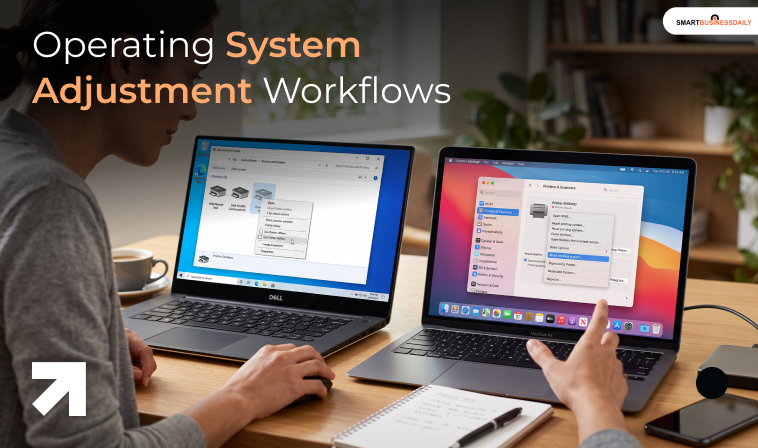
Restoring your communication lines requires navigating specific software menus depending on whether your workstation runs on a Windows or Mac environment.
Windows OS Configuration Check
- Press the Windows Key + R shortcut on your keyboard to open the run execution prompt dialog box.
- Type “control printers” into the input field and press Enter to open the Devices and Printers control panel.
- Right-click your target machine icon and select the See what’s printing option to open the active data queue.
- Click the Printer tab sitting in the top menu layout header.
- Look at the dropdown parameters list. If Use Printer Offline is checked, click it once to clear the checkmark and toggle the device back to online status.
macOS Printing System Reset
- Click the native Apple logo in the upper-left corner of your desktop screen layout and select System Settings.
- Scroll down the left sidebar menu to locate and launch the Printers & Scanners configuration suite.
- Right-click (or Control-click) your disconnected machine icon inside the public device directory list.
- Select the Reset printing system options prompt from the expanded contextual utility map.
- Confirm the system modification command, which completely flushes old configuration histories, then click Add Printer to remap the hardware smoothly.
Clearing The Local Print Spooler Pipeline
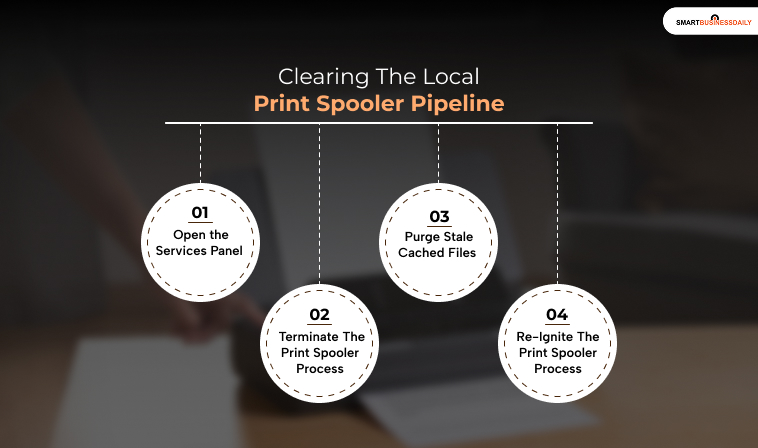
When a print job contains corrupted data packets, it can stall the entire background processing queue, forcing the device status to toggle offline.
Step 1: Open The Services Panel
To begin, locate the Windows search bar located at the bottom of your screen.
Click on it, type in “services.msc,” and then press the Enter key on your keyboard.
This action will open the Services panel, which provides an overview of the background system processes currently running on your Windows operating system.
Step 2: Terminate The Print Spooler Process
Once the Services panel is open, scroll through the extensive list of services. Look for the entry labelled “Print Spooler,” which manages print jobs sent to your printer.
When you find it, right-click the “Print Spooler” entry to open the context menu.
From this menu, select the option labelled “Stop” to terminate the Print Spooler process.
This step is necessary to reset the service and clear any potential issues affecting your printing capabilities.
Step 3: Purge Stale Cached Files
Next, you will need to clear out any stale or corrupted files that may be causing printing problems.
Note that this folder may be hidden, so you might need to adjust your folder view settings to show hidden files.
Once you’ve navigated to this location, select all the files in the folder by pressing Ctrl+A.
After highlighting the files, right-click and choose “Delete” to remove them and clear the print queue.
Step 4: Re-Ignite The Print Spooler Process
Having cleared the stale cached files, it’s now time to restart the Print Spooler service.
Navigate back to the Services panel where you previously stopped the service.
Right-click on the “Print Spooler” entry again and this time select the “Start” option from the context menu.
This action will restart the Print Spooler, effectively re-initiating the printing engine and allowing you to send print jobs to your printer without further issues.
Also Check: 10 Tips For Optimal Business Envelope Printing Results.
Addressing Network Layer Bottlenecks: Dynamic vs. Static IPs
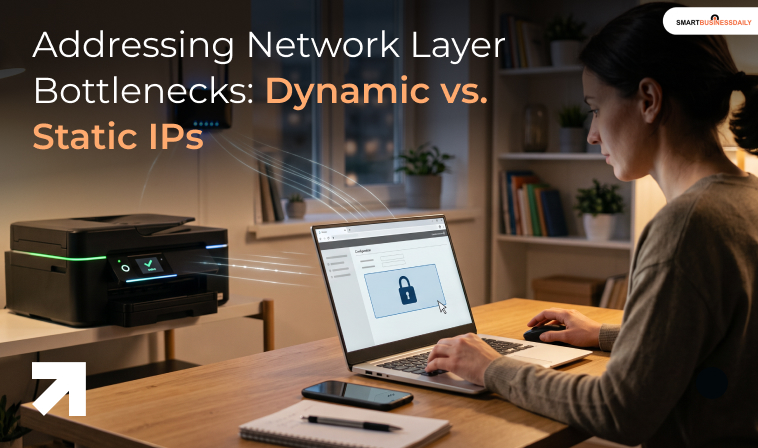
If your printer offline errors keep returning on a wireless network, the issue is likely caused by Dynamic IP Allocation.
By default, network routers use Dynamic Host Configuration Protocol (DHCP) to assign temporary IP addresses to connected hardware.
When a printer goes to sleep to save power, the router may reassign its previous IP address to a smartphone or laptop.
The next time your computer sends a print command, it routes data to the old address coordinates, hits a wall, and flags the machine offline.
To build permanent connection resilience, open your internet router’s admin dashboard or access the printer’s on-board network settings menu.
Manually switch the device configuration away from dynamic parameters to lock in a permanent Static IP Address.
This step ensures your workstation always knows exactly where to route data packets, preventing unexpected network drops.
How To Fix A Printer Offline Status Explained
Fixing a recurring printer offline requires moving away from random menu clicking and following a disciplined, step-by-step diagnostic workflow.
For quick daily errors, checking your software’s “Use Printer Offline” setting or resetting the local print spooler will fix the problem in seconds.
However, if your wireless printer keeps dropping off the grid, taking the time to lock in a static IP address is the most effective long-term fix to protect your workflow. Align your connection tools with your daily document needs, keep your manufacturer drivers up to date, and use stable network configurations to keep your hardware running smoothly.




Related Articles


Comments Are Closed For This Article