







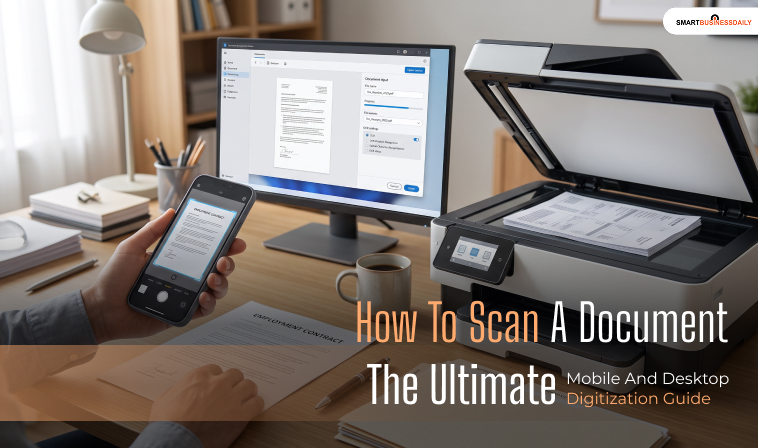
How To Scan A Document: The Ultimate Mobile And Desktop Digitization Guide
25 August 2026
4 Mins Read
- High-Density Document Scanning Method Matrix
- How To Scan A Document: Steps Needed For Digitizing Via Mobile Hardware
- Apple iOS (iPhone And iPad Navigation Steps)
- Google Android (Google Drive Workspace Steps)
- Desktop Protocols: Flatbeds And Multi-Function Infrastructure
- · Step 1: Preparation And Cleaning
- · Step 2: Software Ingestion
- · Step 3: Setting Resolution Metrics
- · Step 4: Layout Adjustments And Export
- Advanced Enhancements: Understanding OCR Technology
- How To Scan A Document: Procedures Explained
Transitioning from physical paperwork to an organized digital filing system is essential for streamlining corporate workflows.
Additionally, it is essential because it protects sensitive records.
In fact, it eliminates physical office clutter.
Also, you need to learn how to scan a document regardless of whether you need to:
- Submit A Signed Employment Contract
- Archive Historical Family Records
- Centralize Tax Receipts
Additionally, mastering how to scan a document ensures your digital files remain crisp, professional, and easily searchable.
Modern technology lets you digitize records without expensive corporate hardware.
You can capture clean, high-resolution scans using native software built directly into your smartphone or a standard desktop printer.
Also, if you see the ‘Printer Offline’ notification, you can check out this detailed guide on the same.
This comprehensive guide breaks down mobile and desktop scanning pipelines, resolution standards, and file optimization workflows.
High-Density Document Scanning Method Matrix
Depending on your target document volume, required image resolution, and available hardware, select the specific scanning configuration that matches your operational needs:
| Scanning Method | Hardware Device Used | Best Suited For | Optimal Export Format | Text Searchable (OCR) |
| Built-In Mobile Scanner | Apple iPhone or Android Smartphone | Fast, on-the-go single receipts, field contracts, and multi-page notes. | Yes (Native system processing) | |
| Flatbed Scanner | Dedicated standalone or multi-function printer | High-resolution archival photos, fragile documents, and bound materials. | TIFF / PNG | No (Requires third-party software) |
| Auto-Document Feeder | High-volume office multi-function printer | Rapid batch processing of loose sheets, lengthy corporate files, and tax records. | Multi-Page PDF | Yes (Enterprise software integration) |
How To Scan A Document: Steps Needed For Digitizing Via Mobile Hardware
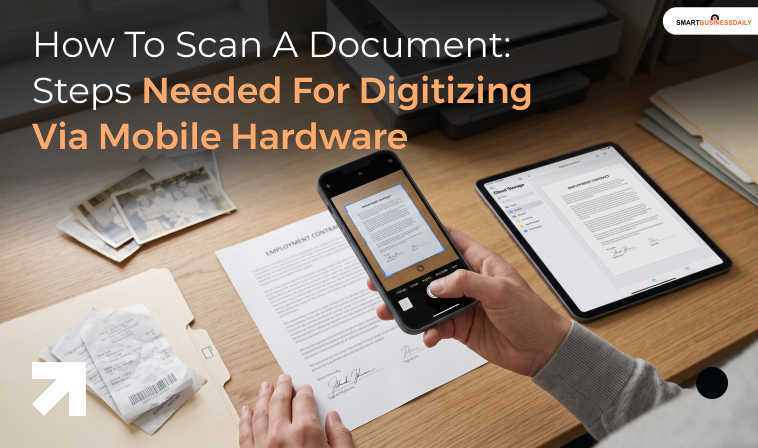
Smartphone camera systems feature advanced image-processing engines
Therefore, these let you scan papers instantly without downloading sketchy third-party apps.
A lot of people have this common doubt regarding what does collate means when printing. In that case, check out the attached detailed guide.
Apple iOS (iPhone And iPad Navigation Steps)
- Launch the native Notes application built into your iOS device.
- Open an existing note file or tap the icon in the bottom right corner to start a new one.
- Tap the Camera icon above the keyboard, then select Scan Documents.
- Position your device camera directly over the physical page. The software engine will overlay a box, automatically crop the edges, and capture the scan.
- Tap Save to drop the cleanly formatted PDF asset straight into your note repository.
Google Android (Google Drive Workspace Steps)
- Open the official Google Drive application on your device home screen.
- Tap the large Plus floating action button positioned in the lower-right corner.
- Select the Scan camera icon from the expanded utilities grid menu.
- Align the document boundary cleanly within the on-screen camera guidelines, then tap Capture.
- Use the color adjustment palette to toggle between color, greyscale, or black-and-white layouts, then tap Save to export the file as a PDF.
Desktop Protocols: Flatbeds And Multi-Function Infrastructure
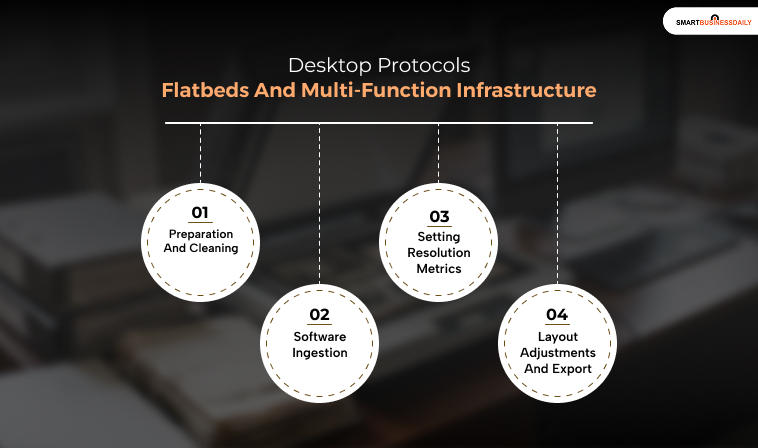
It is comparatively complicated when we are handling high-resolution archives or extensive multi-page binders.
Therefore, this is the time we need to use a desktop computer connected to a flatbed multi-function printer.
This ensures maximum visual stability.
If you want steps on how to set up a printer, check out the linked guide.
· Step 1: Preparation And Cleaning
Open the printer lid assembly and wipe down the optical glass panel with a clean microfiber cloth to remove dust particles or smudges that could ruin your scan.
Place your document face-down on the glass, aligning it carefully with the marker guidelines in the top corner.
· Step 2: Software Ingestion
Open the built-in scanning program on your computer, such as Windows Scan or Mac’s native Image Capture utility.
Select your connected hardware device from the active device list.
· Step 3: Setting Resolution Metrics
Choose your resolution target based on your project goals.
Use 300 DPI (Dots Per Inch) for standard business letters and text documents to keep file sizes low.
If you are scanning historical family photographs or detailed graphics, increase the resolution setting to 600 DPI to preserve every visual detail.
· Step 4: Layout Adjustments And Export
Click the Preview button to check your document alignment and crop away any dead edge space.
Finally, choose your target format—such as PDF for multi-page text documents or JPEG for standalone images—then click Scan to save the file.
Advanced Enhancements: Understanding OCR Technology

To unlock the full potential of your digitized archives, ensure your file generation pipeline includes Optical Character Recognition (OCR) processing.
Standard flatbed scanning converts a physical sheet of paper into a flat digital image file, meaning you cannot highlight text or search for specific words.
Therefore, all you need to do is activate an OCR processing layer.
This tells the software engine to analyze the visual shapes of letters and numbers on the page.
Moreover, it automatically converts them into selectable text data.
This processing step lets you use keyboard shortcuts like Ctrl + F to search your finished documents instantly.
Furthermore, it transforms raw images into highly functional digital files.
How To Scan A Document: Procedures Explained
Mastering how to scan a document is a foundational skill for maximizing office efficiency and building organized digital archives.
For single receipts, field receipts, and quick daily tasks, you can use the built-in scanning features in Apple Notes or Google Drive.
They deliver excellent speed and convenience.
However, if you are managing massive corporate compliance folders, investing in a dedicated multifunction flatbed scanner
Additionally, you can use the same if you are dealing with historical photo archives or bulk paperwork stacks.
This one remains the best option.
Finally, you must figure out how to align your hardware tools with your volume demands.
In addition, it is always a good option to use OCR processing to keep your text searchable.
Also, keep a backup of your digital files on secure cloud servers. This one small yet impactful step will keep your records safe for the long haul.




Related Articles