








Your Organization’s Data Cannot Be Pasted Here: The Complete Security And Fix Guide
7 Mins Read
Published on: 11 July 2026
Last Updated on: 13 July 2026

- The Core Architecture Of Mobile Application Management (MAM)
- Primary Triggers Of The Clipboard Isolation Policy
- 1. Cross-Boundary Data Movement
- 2. File Format Transmutation
- 3. Account Mismatch Within Dual-Identity Apps
- How To Fix The "Your Organization's Data Cannot Be Pasted Here” Issue On Desktop?
- A. Updating Microsoft Office Applications
- B. Modifying The Intune App Protection Policy
- C. Restarting Your Device
- How To Fix The Problem On Mobile?
- 1. Android Clipboard Management
- 2. iOS And iPadOS Clipboard Management
- Step-By-Step Policy Modification Framework
- Best Practices For Enterprise Data Protection
- · Deploy Tiered Compliance Rules
- · Publish Clear Internal Documentation
- · Isolate Web-Based Clipboards
- · Conduct Regular Access Audits
- The Your Organization's Data Cannot Be Pasted Here Issue Is Easier To Solve Than It Seems
Modern enterprise networks rely heavily on cloud infrastructure, distributed workforces, and the widespread adoption of Bring Your Own Device (BYOD) policies.
To protect corporate assets from accidental leaks or malicious exfiltration, IT administrators deploy strict cloud-managed endpoint policies.
Among these security systems, Microsoft Intune App Protection Policies are the most widely used standard.
However, for everyday users, these security guardrails often appear as a sudden operational block: the ubiquitous “your organization’s data cannot be pasted here” error message.
This restriction is not a system glitch or software corruption.
Instead, it is a deliberate data containment rule designed to isolate managed corporate information from personal applications.
Understanding how this restriction operates, why it triggers across specific applications, and how to safely resolve it is essential for maintaining productivity without compromising corporate data compliance.
The Core Architecture Of Mobile Application Management (MAM)
To understand why the “your organization’s data cannot be pasted here” error occurs, you must understand the underlying security architecture governing enterprise mobile devices.
Microsoft Intune manages enterprise security through two distinct mechanisms: Mobile Device Management (MDM) and Mobile Application Management (MAM).
MAM creates an encrypted, virtual sandbox specifically for corporate applications (such as Microsoft Outlook, Teams, OneDrive, and Word) on an end-user’s device.
This sandbox isolates corporate data from the rest of the operating system.
When an employee attempts to copy text, a table, or an attachment from a sandboxed corporate application and paste it into an unmanaged personal application (such as the default Notes app, WhatsApp, or a personal email client), the Intune MAM framework intercepts the clipboard action.
Because the destination application lacks corporate encryption and compliance validation, the system blocks the paste command and replaces the clipboard content with the standard alert string.
Primary Triggers Of The Clipboard Isolation Policy

The clipboard restriction does not monitor every action on a device.
It responds strictly to predefined contextual boundaries established by the company’s security operations team.
The policy typically triggers during four distinct operational scenarios:
1. Cross-Boundary Data Movement
Copying an address, a financial figure, or a string of text from a corporate Outlook email and attempting to paste it into a personal messaging app or a web browser tab.
2. File Format Transmutation
Attempting to drag or export a corporate spreadsheet element into an unmanaged image-editing tool or a local text editor.
3. Account Mismatch Within Dual-Identity Apps
Applications like Microsoft OneDrive or Microsoft Word allow users to log in with both a personal Microsoft account and a corporate Microsoft 365 account simultaneously.
If a user opens a corporate document but switches the active app profile to their personal storage tier before pasting, the policy immediately flags the action as an unauthorized data transfer.
How To Fix The “Your Organization’s Data Cannot Be Pasted Here” Issue On Desktop?
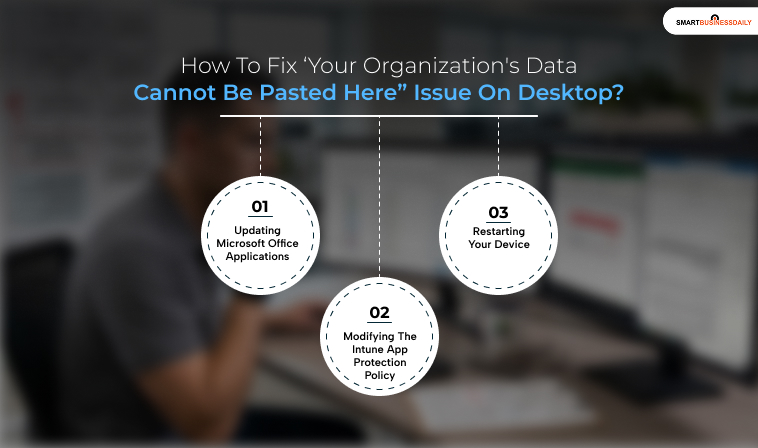
I have mentioned three core steps that you can follow when you have to mitigate this step on your desktop or laptop.
A. Updating Microsoft Office Applications
To address issues with outdated Office builds misinterpreting Intune policy signals, it is essential to update your Microsoft Office applications.
To do this, open any Office app and navigate to File > Account > Update Options > Update Now.
This will allow the system to download and install the available updates.
After the updates are complete, it’s important to restart each Office app.
This simple step resolves the issue in approximately 70% of cases, particularly when errors occur during pasting in Word or when moving data between Outlook and Excel.
B. Modifying The Intune App Protection Policy
This step is intended for individuals with administrative access to the Microsoft Endpoint Manager admin center.
Begin by navigating to Apps > App Protection Policies and selecting the relevant policy.
Within the Data Transfer section, find the option labeled “Restrict cut, copy, and paste between other apps.”
You can adjust this setting from Blocked to either Policy Managed Apps or Policy Managed with Paste In, based on your organization’s security requirements.
Please note that any policy changes will take effect within 30 minutes, and users may need to restart the affected applications.
If you’re not an admin, contact your IT department to request this change and provide details about the applications involved, along with your business justification, to expedite the process.
It’s worth noting that conflicts may arise when using cloud storage encryption tools alongside Intune policies.
C. Restarting Your Device
Restarting your device is another effective way to resolve issues.
A reboot clears cached policy data and initiates a fresh synchronization with Intune servers, which can correct temporary glitches caused by outdated or corrupted policy states.
Make sure to save your work before restarting, and then attempt the paste operation again.
You Can Also Check: Taebzhizga154: A Detailed Overview Of The Recently Famous Structured Identifier In 2026
How To Fix The Problem On Mobile?
These are the techniques you can use to resolve this issue on your mobile.
1. Android Clipboard Management
Users on Android may encounter a restriction message when trying to paste content between managed applications, even though the action itself may still work.
To effectively bypass this visual warning, long-press the target text field and select “Paste” from the context menu instead of relying on the keyboard clipboard suggestion.
If this approach does not resolve the issue, consider clearing the cache of the Company Portal app. Navigate to:
Settings > Apps > Company Portal > Storage > Clear Cache.
This action prompts a fresh sync of policies without affecting your enrollment status.
It’s important to note that users using alternative email clients not included in the Intune-managed app list will experience these restrictions by design.
2. iOS And iPadOS Clipboard Management
On Apple devices, the Microsoft Authenticator app is essential for enforcing company policies.
To ensure optimal performance, confirm that you have the latest version of the Authenticator installed from the App Store.
If you continue to experience paste errors, try removing and re-adding your corporate account within the affected application.
Additionally, iOS users may find it beneficial to force-quit all Office apps and then relaunch them.
For those on devices with disk-level encryption activated alongside Intune management, clearing the app cache can be done by going to:
Settings > General > iPhone Storage > (App Name)> Offload App.
This may help to resolve any ongoing policy issues.
Step-By-Step Policy Modification Framework
- Select either Policy Managed Apps or Policy Managed Apps with Paste In depending on your firm’s compliance threshold.
- If you want to allow specific, trusted external applications to receive data (such as a legacy line-of-business tool), scroll down to the Exemptions section.
- Enter the specific Bundle ID (for iOS) or Package Name (for Android) into the exemption fields to create a secure gateway for those specific applications.
- Save the policy modifications and assign them to the target Azure Active Directory (AAD) user groups. Note that changes can take up to 24 hours to fully sync across all distributed user devices.
Best Practices For Enterprise Data Protection
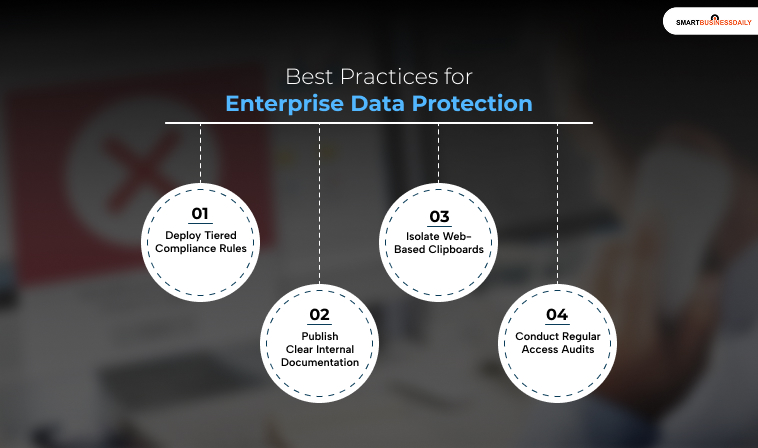
To avoid causing widespread workflow interruptions while keeping corporate data secure, organizations should follow these core deployment principles.
This will be an important step to manage clipboard security:
· Deploy Tiered Compliance Rules
Avoid applying a single, highly restrictive policy to your entire workforce.
Apply strict data boundaries to departments handling highly sensitive information (such as HR, legal, and finance).
Additionally, this offers more flexible rules for general operations teams.
· Publish Clear Internal Documentation
When rolling out Intune MAM for the first time, provide employees with a clear guide. That explains the “your organization’s data cannot be pasted here” notification.
Also, you have to clearly outline which apps you are approving for work tasks. Then, the team members don’t mistake security rules for device malfunctions.
· Isolate Web-Based Clipboards
Pair app protection rules with Microsoft Edge Enterprise sync policies.
This ensures data copied from corporate cloud portals into web-based clipboards remains safely sandboxed within the corporate browser ecosystem.
· Conduct Regular Access Audits
Review your app exemption lists quarterly. This way, you that ensure old, unmaintained third-party applications do not retain access to your secure corporate data pools.
Also Check: Medusa Ransomware: How It Works, Who It Targets, And How To Stop It
The Your Organization’s Data Cannot Be Pasted Here Issue Is Easier To Solve Than It Seems
The ‘your organization’s data cannot be pasted here’ notification serves as a critical defense mechanism in modern enterprise endpoint security, rather than a system error.
Additionally, you must establish a virtual sandbox for corporate data through Microsoft Intune.
Then, the organization can prevent accidental data leaks without over-restricting how employees use their personal devices.
For end users, resolving the block is as simple as aligning their workflows. Of course, they need to do this with approved corporate applications such as Outlook or Word.
For IT administrators, fixing the issue requires finding the right balance between strict compliance rules and a smooth user experience within the Intune configuration panel.
As remote work and BYOD policies continue to expand, properly understanding and configuring mobile application management boundaries is vital.
This will keep corporate assets secure without disrupting daily team productivity.




Related Articles



Comments Are Closed For This Article